Cursor vs Claude Code for Game Development: What to Choose
- AI Coding Tools
- Guides
- Game development
- Cursor
- Claude Code
- Written by
- Bhargav Tibadiya
- Published
- Reading time
- 10 min read
For Cursor vs Claude Code for game development, I would keep Cursor when the editor is already where you inspect and change the game, and try Claude Code when you prefer handing a bounded repository task to an agent through a terminal or another supported interface. Neither choice earns a win until its change works in your engine and you can review what happened.
This is a documentation-based selection guide, checked November 11, 2026. I have not run the same game through both assistants, measured their success rates or ranked their gameplay code. The examples below are proposed evaluation tasks, not reported test results.
The distinction is not that Cursor only completes lines while Claude Code can work independently. Cursor Agent edits files, searches a project and runs shell commands[1]. Claude Code also reads code, edits files and runs commands, with terminal, IDE, desktop and browser surfaces[2]. Both can take on a task. The useful difference is how that work fits your review process and reaches your game.
Cursor vs Claude Code for game development starts with your workflow
If you are learning a project while changing it, keep the code and the agent's edits close to the place you already work. Cursor is a sensible first candidate for an editor-centered loop: inspect a script, ask a question, review the proposed change and return to the engine to check the behavior.
Claude Code is a sensible first candidate for a repository-centered loop: define the issue, let the agent investigate the relevant files and commands, and review a bounded result. That does not require abandoning your editor. Its supported interfaces extend beyond a terminal, so choose the surface that makes review easiest rather than treating command-line work as a badge of expertise.
For an established project, switching has a cost even when the new assistant is good. Instructions, permissions, dependencies and the engine connection all need checking again. Start with the assistant you already have unless there is a named limitation, such as an unavailable integration or a review process that consistently gets in your way.
My Unity assistant guide goes deeper on that engine's plugin and CLI setup. This comparison focuses on the broader game-development decision: what each workflow must demonstrate before you keep using it.
Define one playable problem before opening the agent
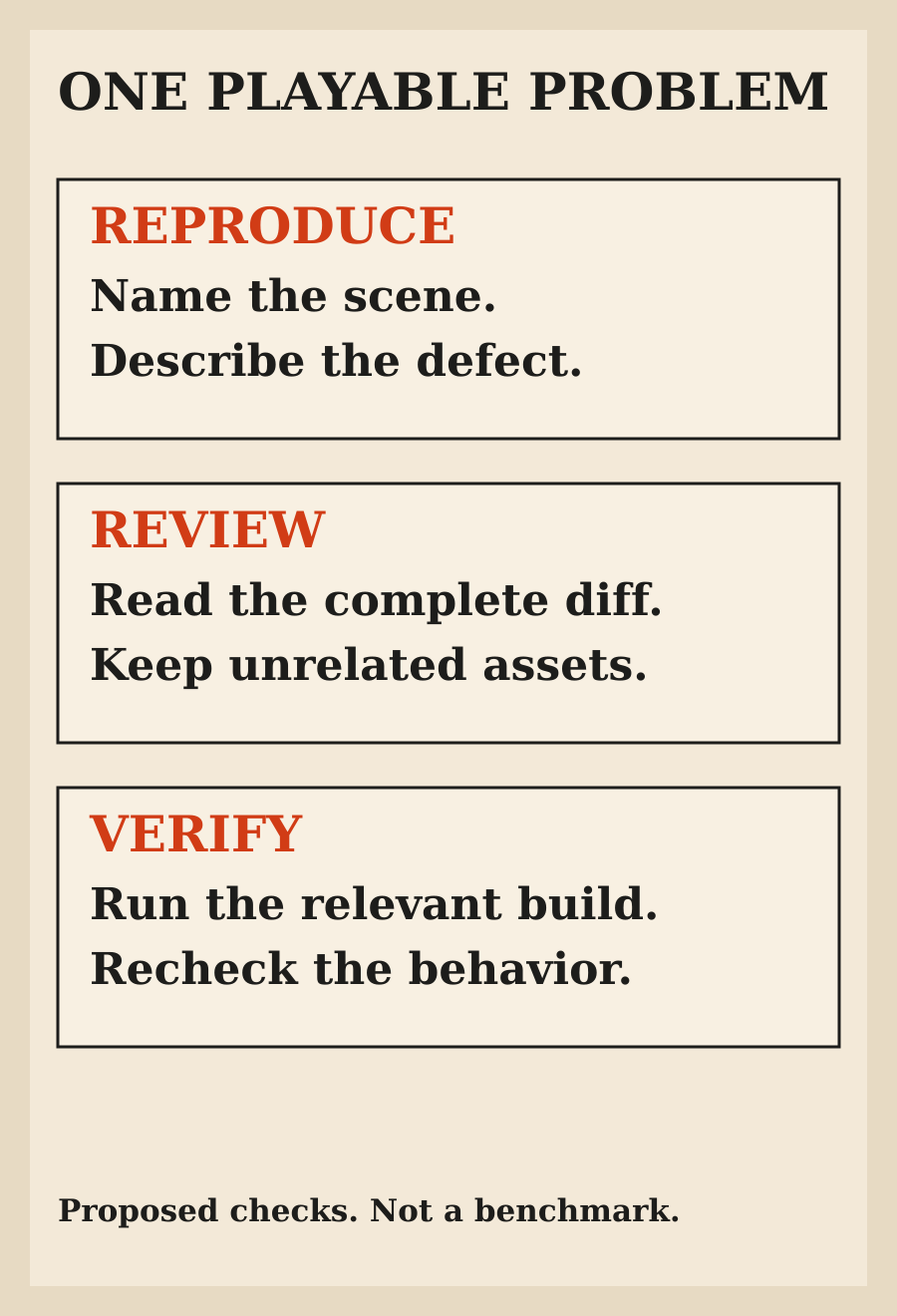
A request to make the game better gives an assistant too much freedom and gives you no useful way to judge the result. Pick an issue you can reproduce and describe the expected behavior before any edits begin.
For example, a pause menu might close visually while the player still moves behind it. A bounded request would name the scene, describe the input sequence, explain which behavior should stop and state which behavior must remain active. Those are illustrative acceptance criteria. They are not a universal pause-system design.
The evaluation should include what must not change. Keep the existing input system, avoid unrelated asset edits and do not turn a small bug into a dependency upgrade. If the task genuinely needs a larger change, stop and evaluate that as a separate decision.
Use the same starting revision for both assistants. Otherwise you may give one a broken setup and the other a project that already contains the fix. Save the reproduction and expected result with the task so that your later judgment does not depend on remembering what the agent was supposed to do.
Give both assistants the same project context
The engine name is not enough. Supply the engine version, language, target platform, important packages and the exact scene or level involved. Tell the assistant which code path is relevant and which generated or imported folders should be left alone.
Keep project instructions short enough to review. Cursor supports version-controlled project rules in `.cursor/rules` and a simpler `AGENTS.md` alternative[3]. Use the format your team already maintains rather than creating parallel documents that soon disagree.
Claude Code's documented workflows include investigating unfamiliar code, debugging with reproduction details and planning before editing[4]. Give it the same factual brief you would give Cursor. A preference for one tool should not become an unfair context advantage in the comparison.
Do not fill the brief with an entire design document when the issue concerns one menu. Include the relevant conventions and a path to the rest. If the assistant cannot identify the right files, ask it to explain the missing information before it starts changing unrelated systems.
File access is not engine access
An assistant can edit a script without seeing the running scene that uses it. It can also write a plausible explanation of what the scene should do without having launched it. Keep those capabilities separate when deciding whether a task is finished.
For a code-only change, repository access and the correct test command may be sufficient. A scene-layout change needs actual visual inspection. A collision issue needs a reproduction in the relevant environment. A target-platform bug may remain unverified until the exported build runs there.
Before installing an engine bridge, identify what is missing. You might only need a command that launches the project or exports a build. A plugin with broad Editor control is a larger setup decision, and its existence is not evidence that it supports your engine version or the exact operation you need.
Ask for a handoff that distinguishes changed files, commands actually run, behavior observed and checks still missing. I use the same separation in the guide to checking an agent's final result. A successful conversation is not a playable acceptance test.
Godot gives you a concrete command-line check
Godot's own command-line interface can start a project, run a named scene and export a build. The project path matters: `--path` selects the project, while passing `project.godot` directly opens the editor rather than running the game[5].
That gives either assistant a useful path for a bounded task without assuming a particular third-party bridge. Have it identify the project root, the intended scene and the command before running anything. A command that succeeds in the wrong project tells you nothing about your bug.
Exporting has prerequisites. Godot's documentation requires the editor binary, installed export templates or a configured custom template, and a preset name matching `export_presets.cfg`. A missing template is an environment problem, not proof that the generated gameplay code is wrong.
Treat a successful export as one check. It does not show that the pause menu handles input correctly or that a controller works on the target device. Open the result, reproduce the original issue and check the nearby behavior most likely to regress.
Unity and Unreal need their own connection checks
For Unity, distinguish the CLI, the Editor connection and any guidance installed for the assistant. The Unity CLI overview (opens in a new tab) labels it experimental and requires the Pipeline package for Editor control. Its migration notice deprecates the MCP server inside the in-Editor AI assistant package, not the CLI's MCP mode or every third-party MCP package[6].
That detail matters when an old tutorial tells you to install a package or replace a server. Check the exact component and version rather than treating the word MCP as one interchangeable product. A working shell command, a configured client and a reachable Editor are separate things to verify.
For an Unreal project, do not transfer a Unity or Godot setup assumption. Make the actual engine version, C++ or Blueprint task, build route and required Editor operation part of the evaluation. If you have not verified the compatibility of an integration, call that connection unverified rather than promising either assistant full Editor control.
The recommendation is deliberately narrow. You do not need to settle every engine's tooling to choose an assistant for your current project. You need a supported route for this engine, this task and this review process.
Compare the full cost, not just the subscription label
Cursor's current pricing separates included usage from third-party model usage, and it also retains legacy plans. The current page lists Plus at $8 per month and Premium at $30 per month before tax; third-party models are available from Premium and are paid from prepaid credit, rather than included in the weekly pool[7].
That is why an old comparison headed by a single monthly price can mislead. Verify your actual plan, selected model, included allowance and additional-usage settings. Do not assume a subscription containing an assistant includes unlimited access to every model shown in the interface.
Claude Code's cost documentation also separates subscription usage from API billing. For subscribers, a displayed API-list-price session estimate is not the authoritative subscription bill[8]. Record which account and billing route you used when comparing the two setups.
For the trial, track what it costs to reach an accepted result. Include retries, unnecessary exploration and the time spent correcting the change. Do not turn one small task into a universal cost-per-feature claim. The point is to understand your workflow before buying a second subscription, not to manufacture a neat winner.
A private game is still data you may be sending away
Cursor's Privacy Mode prevents code being used for training, but its AI features still send prompts and code context to providers. Its privacy documentation also describes exceptions to zero-data-retention arrangements, including bring-your-own-key use and models that require provider retention[9].
Claude Code's data policies vary by account type and settings. Consumer accounts can allow model improvement; commercial terms do not use submitted code or prompts for training unless the customer opts in. Standard retention and qualified zero-retention arrangements are different, and local execution still sends data over the network to the model[10].
For a client game or an unreleased project, confirm the approved service and account before providing source, screenshots or internal design material. Training, retention, local files and cloud execution are separate questions. A statement that one of them is private does not answer the others.
Avoid putting signing credentials, platform secrets or production access into the task. The first evaluation should not need permission to publish a game, upload a store build or change a team's billing settings.
Keep permission and rollback decisions small
Start from a known version-control checkpoint and review the complete diff, including scenes, resources, project settings and dependency files. Cursor's local checkpoints are useful for undoing agent edits, but its documentation explicitly distinguishes them from Git's permanent version control[1].
Claude Code provides permission modes and fine-grained rules. Its Plan mode can inspect and propose without editing, while other modes have different approval behavior[11]. Choose the mode for the work you actually want, rather than disabling checks because a setup guide promises faster progress.
Do not run two assistants against the same working files at once during the comparison. Separate branches or worktrees make it easier to identify each change and return to the same starting point. Claude Code documents worktrees for isolated parallel sessions, but isolation does not remove the need to review what you later combine[4].
If the assistant changes a shared setting or installs a dependency unexpectedly, stop and examine why. A smaller accepted fix is more useful than a broad change you cannot explain or safely undo.
My choice after the first task
Keep Cursor if the editor-centered loop helps you understand the change and the engine check is straightforward. Keep Claude Code if a bounded repository task, a clear plan and command-based checks reduce your manual work. If the existing setup passes, there is no need to migrate because another tool produced a better-looking demonstration.
Switch only for a concrete improvement: access to a required operation, less correction, clearer review or a better total cost for your actual tasks. Save the reproduction, diff, observed result and missing checks. They will tell you more than the number of generated lines.
Neither assistant should be judged only by whether it made the code compile. For game development, the accepted result is the relevant behavior in the relevant build, with a change you can understand and maintain.
FAQ
Is Cursor or Claude Code better for game development?
Choose by workflow and verified results in your project. Cursor is a useful first trial for an editor-centered process; Claude Code is useful for bounded repository tasks. This guide does not establish a measured performance winner.
Can both assistants edit a Godot or Unity project?
Both can work with repository files and commands. Operating the running engine needs a compatible route that you should verify separately. Editing a script does not prove the scene or game was tested.
Do I need an MCP plugin to start?
Not always. A code change may only require repository access and the engine's own commands. Add an integration when the task needs a capability you cannot otherwise reach, and verify its version compatibility and scope.
Does a successful game export prove the fix works?
No. An export checks the build route. Reproduce the original issue in the relevant build and inspect nearby behavior before accepting the change.
Does a local coding assistant keep all my code offline?
No. Local execution and model processing are separate. Check the account's training, retention and provider policies before using private project material.
Did you benchmark both assistants on the same game?
No. This is a documentation-based comparison with proposed evaluation checks, not a controlled trial or a measured ranking of gameplay code.
Sources
- Cursor Agent capabilities and checkpoints (opens in a new tab)
- Claude Code overview and supported surfaces (opens in a new tab)
- Cursor project rules (opens in a new tab)
- Claude Code common workflows (opens in a new tab)
- Godot command-line tutorial (opens in a new tab)
- Unity CLI and the scope of the in-Editor MCP server deprecation (opens in a new tab)
- Cursor models and pricing (opens in a new tab)
- Claude Code cost tracking and billing distinctions (opens in a new tab)
- Cursor privacy and data (opens in a new tab)
- Claude Code data usage (opens in a new tab)
- Claude Code permissions (opens in a new tab)