Best AI Coding Assistant for Unity: Choose the Workflow
- AI Coding Tools
- Unity
- AI coding
- Claude Code
- Cursor
- Written by
- Bhargav Tibadiya
- Published
- Reading time
- 10 min read

For an existing Unity 6 project, my first choice is the coding assistant you already work with, connected to Unity's maintained tooling and tested on one small change. I would try Claude Code with Unity's official plugin for a terminal-oriented workflow, keep Cursor for an established editor-oriented workflow, and evaluate Unity's in-Editor assistant when direct scene work is the main need.
That is a recommendation about fit, not a measured ranking of C# quality. This guide is based on documentation checked November 10, 2026. I did not run a head-to-head Unity benchmark, measure completion rates or test the same game in each assistant.
The useful question is which setup can understand this project's conventions, reach the correct Editor and produce a result you can review. Unity's plugin documentation separates task guidance from the CLI needed for Editor commands[1]. Establish both before handing over a feature.
Start with the work, not the model
Writing a script, diagnosing a material, adjusting a scene and preparing a platform build are different jobs. Do not buy an assistant because a demonstration showed it doing a job your project does not need.
Start with the Unity version, render pipeline, UI framework and target platform. Add the existing editing workflow and the person who will review changes. A team already comfortable reviewing scripts in Cursor has a different switching cost from a solo developer who works mainly inside the Unity Editor.
For a first trial, choose an issue with a known reproduction and a clear finish. A settings panel that forgets its saved value is a better evaluation task than an instruction to improve the entire game. You should be able to explain what changed and what passed without reading a long conversation.
Understand the current connection layers
There are several parts to a Unity agent setup: the coding assistant, Unity-specific guidance, and the connection that lets it inspect or operate a running Editor. Installing one part does not prove that the others are available.
Unity's migration documentation describes the CLI's MCP mode and direct Editor commands as supported routes. It says the CLI can manage Editor versions, run headless builds and run tests without an AI agent. Driving a running Editor through the Pipeline package requires Unity 6.0 LTS or later[2].
The CLI overview also labels the tool experimental[3]. Treat setup instructions as version-sensitive. Record the CLI, package and Editor versions when comparing assistants, and do not assume a working connection on one machine establishes a working connection on another.
Claude Code: evaluate the official plugin route
Unity documents a first-party plugin for Claude Code that adds task-specific skills. Its installation guide covers the terminal and Claude desktop app, with user, project and local scopes. The VS Code Claude extension uses a plugin manager rather than the same singular slash command used inside the terminal session[1].
This makes Claude Code a sensible first trial when you want a documented plugin route and are comfortable reviewing an agent's repository changes. It does not establish that Claude produces better gameplay code than every alternative.
Choose installation scope deliberately. A local evaluation should not quietly become a shared team configuration. After installation, verify that the plugin is enabled and its Unity skills appear. Then separately check the Editor connection before asking for a scene change.
Cursor: keep a working editor workflow
If your team already uses Cursor, I would first connect that workflow rather than switch products for a Unity-specific marketing claim. Unity's CLI migration guide explicitly includes Cursor among its configurable MCP clients[2].
Unity also publishes a reusable skills repository that names Cursor, GitHub Copilot, Cline and other compatible agents. The repository directs Claude Code and Codex users toward the official plugin instead[4]. These are different installation paths, not evidence that every agent has the same native plugin interface.
For a Cursor trial, verify what is actually connected: repository files, Unity guidance, the selected project and the running Editor. Then ask for one bounded change. File access alone is not enough to call a scene interaction verified.
Codex and other supported agents
Unity's official plugin repository lists Claude Code, Codex, Grok, Antigravity and GitHub Copilot CLI, with separate installation and verification steps[5]. There is no reason to interpret a shared plugin as a controlled comparison of those assistants.
If your existing agent is supported, start there. Keep the project revision, instructions and acceptance check constant when trying another product. Otherwise the comparison may mostly measure differences in setup and context.
I would switch only for a concrete improvement: an easier review process, a connection the current tool cannot support, or better results on the same task after accounting for manual corrections. A longer feature list is not enough on its own.
Unity's in-Editor assistant: test scene work directly
Unity describes its own in-Editor assistant as project-aware and able to inspect GameObjects and components, drive Editor actions and verify behavior. Its feature page distinguishes that assistant from the official plugin, CLI, MCP server and AI gateway[6].
I would evaluate the in-Editor route when your main difficulty is understanding or changing a scene, and when its current access and billing fit your project. That is a trial recommendation, not proof that a native tool automatically makes fewer mistakes.
Ask it to show the affected objects and explain the change before accepting broad modifications. For a UI task, inspect the actual layout and interaction. For a physics task, reproduce the behavior. A completed conversation is not the acceptance test.
Do not assume the plugin installs every dependency
There is a documentation mismatch worth keeping visible. Unity's feature page describes the plugin as bundling skills, the CLI and the MCP server[6]. The Claude Code plugin troubleshooting page says the plugin only ships skills, does not use an MCP server, and requires the CLI, Pipeline package and an open Editor for Editor commands[1].
I would not turn either description into a promise that one installation always completes the whole setup. Follow the current agent-specific installation instructions, then verify the actual installed pieces and Editor connection. Report a missing dependency as missing rather than silently inventing an installation result.
This distinction matters when planning a team rollout. A package appearing in an agent menu is one check. Reaching the intended project and safely performing the intended operation are separate checks. Keep those checks in the onboarding process until the documentation and observed behavior agree.
The MCP deprecation has a specific scope
Unity deprecated the MCP server inside the in-Editor AI assistant package, com.unity.ai.assistant. The replacement is the MCP mode in the Unity CLI. The CLI's MCP mode is not deprecated, and third-party MCP packages installed from GitHub are unaffected by that specific change[2].
Do not read an old instruction to enable the in-Editor server as current setup guidance. Equally, do not remove a working third-party integration just because a different server was deprecated. Identify the package and connection you actually use first.
The migration guide names client configuration and Pipeline installation as part of moving to the CLI. Treat migration as a reviewed configuration change. Confirm the new connection works before removing the old one, and check that you have not left duplicate Unity servers configured for the same assistant.
Make project context specific
Unity's plugin guidance recommends naming the UI framework. It recommends UI Toolkit for new projects and says existing uGUI projects should identify uGUI. It also recommends asking for the relevant reference material when an output looks wrong[7].
Do not let an assistant reinterpret a small bug fix as permission to replace a UI system. State the system already in use, the desired behavior and what must remain unchanged. Include the relevant scene or prefab and reproduction steps when you know them.
A Unity Discussions technical article also emphasizes project context, planning, testing and Git checkpoints[8]. I would turn those ideas into a short project handoff, not a large document full of generic instructions. Version, pipeline, naming conventions and acceptance tests are more useful than repeating that the code should be good.
Budget for usage, not only the subscription
Unity's feature page says the CLI, official plugin and MCP server are free. That does not make the third-party assistant subscription or its usage free. The same page distinguishes Unity's credit-based in-Editor assistant from external-agent routes[6].
Unity's credit documentation warns that published consumption values are examples rather than fixed rates. Consumption can vary with context, conversation length, mode, model and task complexity. Credits reset at the billing cycle and unused credits do not roll over[9].
For an evaluation, record the actual usage shown by the relevant service and the time spent reviewing and fixing the result. Do not convert an example credit figure into a guaranteed number of completed features. Confirm your organization's current access and balance before starting a large task.
Keep the assistant and its model separate
Claude Code is the coding workflow; Fable 5.2 is a model choice within the wider Claude offering. Anthropic launched Claude Fable 5.2 and Claude Mythos 5.2 on November 9, 2026. Fable is generally available, while Mythos requires access through verification programs. Anthropic reports coding improvements and up to 30% faster output than the 5.1 models[10]. Those are vendor claims, not evidence that Fable wins a Unity comparison.
Record the selected model when comparing workflows. Current Fable 5.2 documentation lists base API pricing of $8 per million input tokens and $40 per million output tokens[11]. That is not a Claude subscription price or a guaranteed cost per completed Unity task. The launch's optional fast mode has separate premium pricing, so do not assume the base rate covers it[10].
For a private game project, also check model-specific data terms. The Fable 5.2 documentation says it requires 30-day data retention unless Anthropic expressly authorizes zero data retention[11]. A new model release is a reason to check fit, access and terms, not to skip the same small-task evaluation.
Protect the project before delegating a large change
The official plugin repository warns that its skills can change scripts, scenes and assets directly, and can run C# in the open Editor when the CLI is available. It says not every change is logged or undoable from the Editor, so version control matters[5].
Start from a known checkpoint. Review changes to scenes, prefabs, project settings and packages along with scripts. If a task unexpectedly needs a dependency upgrade or a project-wide setting change, separate that decision from the original bug fix.
Also review data handling for the actual route you choose. Unity's own defaults should not be assumed to describe every external assistant. For a private project, confirm your organization's rules and the chosen provider's current terms before sending project content to a new service.
A fair first-task evaluation
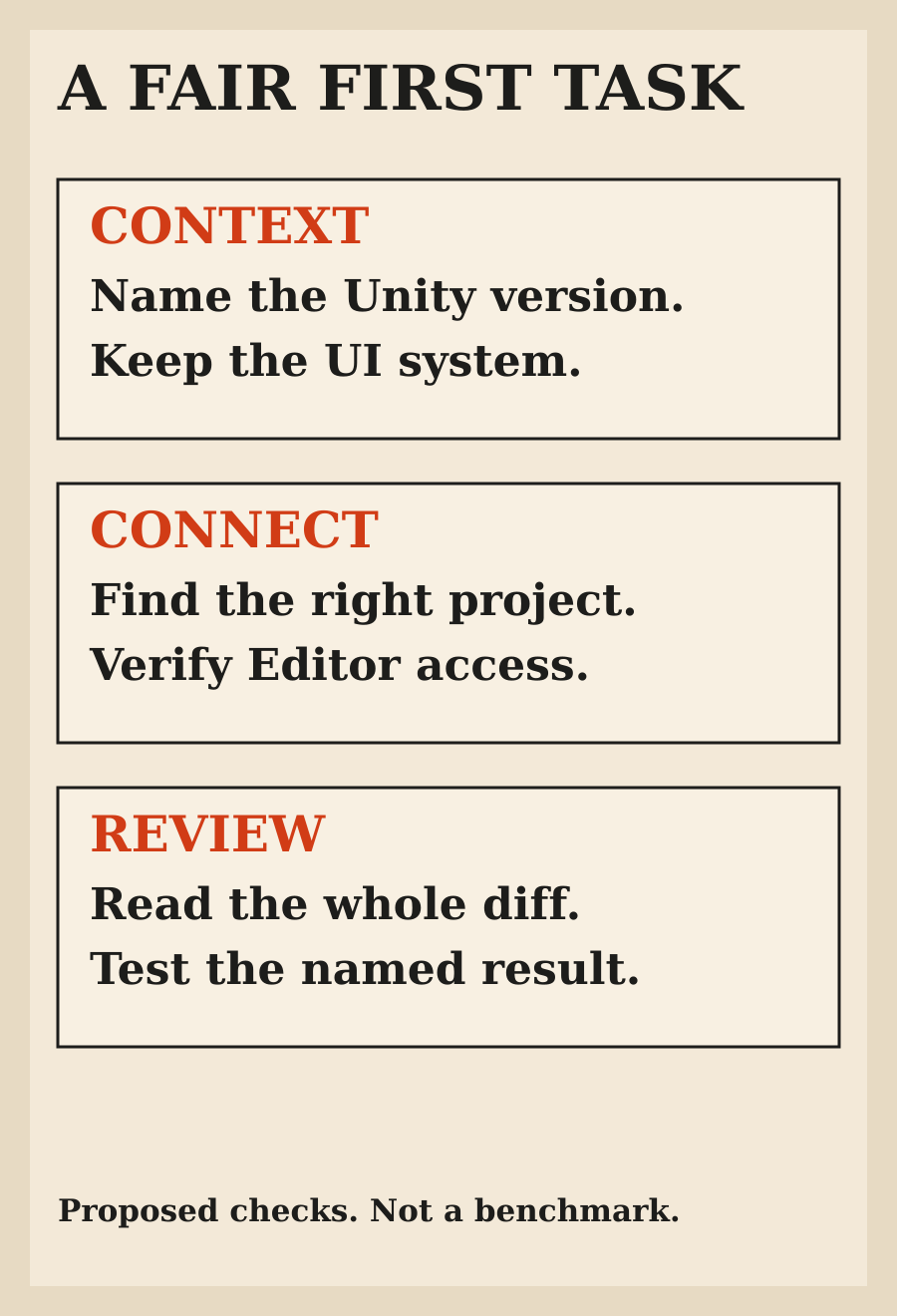
Give each candidate the same project revision and one concrete issue. Ask for a short plan, the smallest relevant change, a check tied to the defect and a handoff that separates completed work from missing evidence.
For a settings-panel example, I would check the initial state, save behavior, reopening the panel and any invalid input. Those are illustrative acceptance checks, not reported test results. Choose checks that match your own defect rather than copying them mechanically.
Count the corrections you made, not only the code the assistant produced. Did it choose the right UI system? Did it preserve unrelated assets? Did it inspect the right scene? Could you reproduce its result? The best fit is the workflow that reduces the full task's work without making review less trustworthy.
My recommendation
Keep your existing assistant as the first candidate if it can use Unity's maintained guidance and reach the required project. Claude Code's documented plugin route is a useful starting point for terminal-oriented work; Cursor remains a reasonable first trial for an established editor workflow. Evaluate the in-Editor assistant when scene-focused work is the main requirement.
Do not buy a second subscription until the first setup has had a fair, bounded trial. If it fails, preserve the reproduction, diff and missing capability. Those details tell you whether another assistant might help or whether the real problem is the project environment.
There is no universal winner demonstrated here. My pick is the setup that produces the clearest verified result in your project with the least correction and review burden.
FAQ
What is the best AI coding assistant for Unity?
Start with the assistant already used by your project, connect Unity's maintained tooling and evaluate one bounded task. This guide recommends by workflow fit, not a measured model ranking.
Can I use Claude Code with Unity?
Yes. Unity documents an official plugin and a separate Editor-control setup. Verify both the plugin and the working Editor connection rather than treating installation as completed testing.
Can Cursor control the Unity Editor?
Unity's CLI documentation includes Cursor as a configurable MCP client. A configured connection and the right project still need to be verified before accepting Editor-level results.
Is Unity's MCP support deprecated?
Only a specific server in the in-Editor AI assistant package was deprecated. The Unity CLI's MCP mode remains supported, and the cited notice does not deprecate third-party MCP packages.
Are Unity's AI tools free?
The CLI, official plugin and MCP server are listed as free. External assistant usage can still cost money, and Unity's in-Editor assistant uses a separate credit system. Check current plan access and usage before starting work.
Did you test these assistants on the same game?
No. This is a documentation-based selection guide. The task and acceptance checks are proposed evaluation methods, not measured results.
Sources
- Unity's plugin for Claude Code (opens in a new tab)
- Unity CLI as the replacement for the in-Editor MCP server (opens in a new tab)
- Unity CLI overview (opens in a new tab)
- Unity Technologies: reusable agent skills (opens in a new tab)
- Unity Technologies: official agent plugin (opens in a new tab)
- Unity's AI tools (opens in a new tab)
- About Unity's plugin (opens in a new tab)
- Tips and tricks for using Claude Code and Codex with the Unity CLI (opens in a new tab)
- About Unity Credits (opens in a new tab)
- Introducing Claude Fable 5.2 and Claude Mythos 5.2 (opens in a new tab)
- Claude Fable 5.2 model overview (opens in a new tab)
Elsewhere on this site
Cursor vs Claude Code for frontend focuses on browser evidence and UI review.