VS Code Agent Automations: Cron, Permissions and Missed Runs
- AI Coding Tools
- VS Code
- Automations
- Cron
- GitHub Copilot
- Written by
- Bhargav Tibadiya
- Published
- Reading time
- 8 min read
VS Code agent automations let you save a prompt and session configuration, then run the task manually or on a schedule. For local cron, the limit is straightforward: the machine must stay awake and the required agent process must remain available. Saving an automation does not turn your laptop into an always-on service[1].
Start with a small read-only task, inspect one manual result and only then add a recurring trigger. If the work must continue while the computer is off, investigate the separate cloud automation route and its eligibility, permissions and usage rules rather than assuming local cron will keep running.
This guide was checked November 8, 2026. Custom cron schedules were part of VS Code 1.145, released November 4[2]. I did not execute a scheduled agent task or measure its reliability. The examples are proposed setup and acceptance checks, not test results.
What an automation saves
An automation combines a task prompt with session configuration and a trigger. VS Code documents uses such as repository summaries and issue triage. You can create one from scratch or begin with a template[1].
The template is a starting point, not a reviewed instruction for your repository. Read its prompt and specify the branch, time range and expected output. State whether the task may change files, open pull requests or alter issues.
For a first evaluation, I would request a summary of recent commits with commit references and no modifications. It is easy to compare the result with the repository history, and a wrong result does not need to become a wrong code change.
Local and cloud are different execution choices
Local execution is useful when a task needs your workspace, local tools or development environment. The current guide requires an awake computer and an available agent. Agent Host-backed schedules need a running Agent Host process; other schedules need a running VS Code window[1].
Cloud automations run on GitHub and can continue when the computer is off. They are in preview and require an eligible private GitHub.com repository, write access and service permission from the account and organization[1].
Turning on an editor setting is not a substitute for that access. Nor does an interactive cloud session create a recurring automation. Choose the execution environment first, then verify that the task can access the repository and tools it needs there.
Create a bounded local task
In the Agents window, open Automations, create an automation and leave Run in the Cloud off. Name the task, enter the prompt, choose the workspace or Chat, and select an available agent and its configuration[1].
Before choosing a schedule, review the model, permissions and any isolation option. For a Git workspace, the guide describes a New Worktree option when the selected agent supports it. Isolation can help organize a trial, but it does not make every command harmless.
A useful prompt names the intended result and the actions it must not take. For example, ask for a referenced summary in the session and explicitly prohibit file changes. Then inspect the configuration rather than assuming the prompt alone limits the agent's tools.
Run once before scheduling
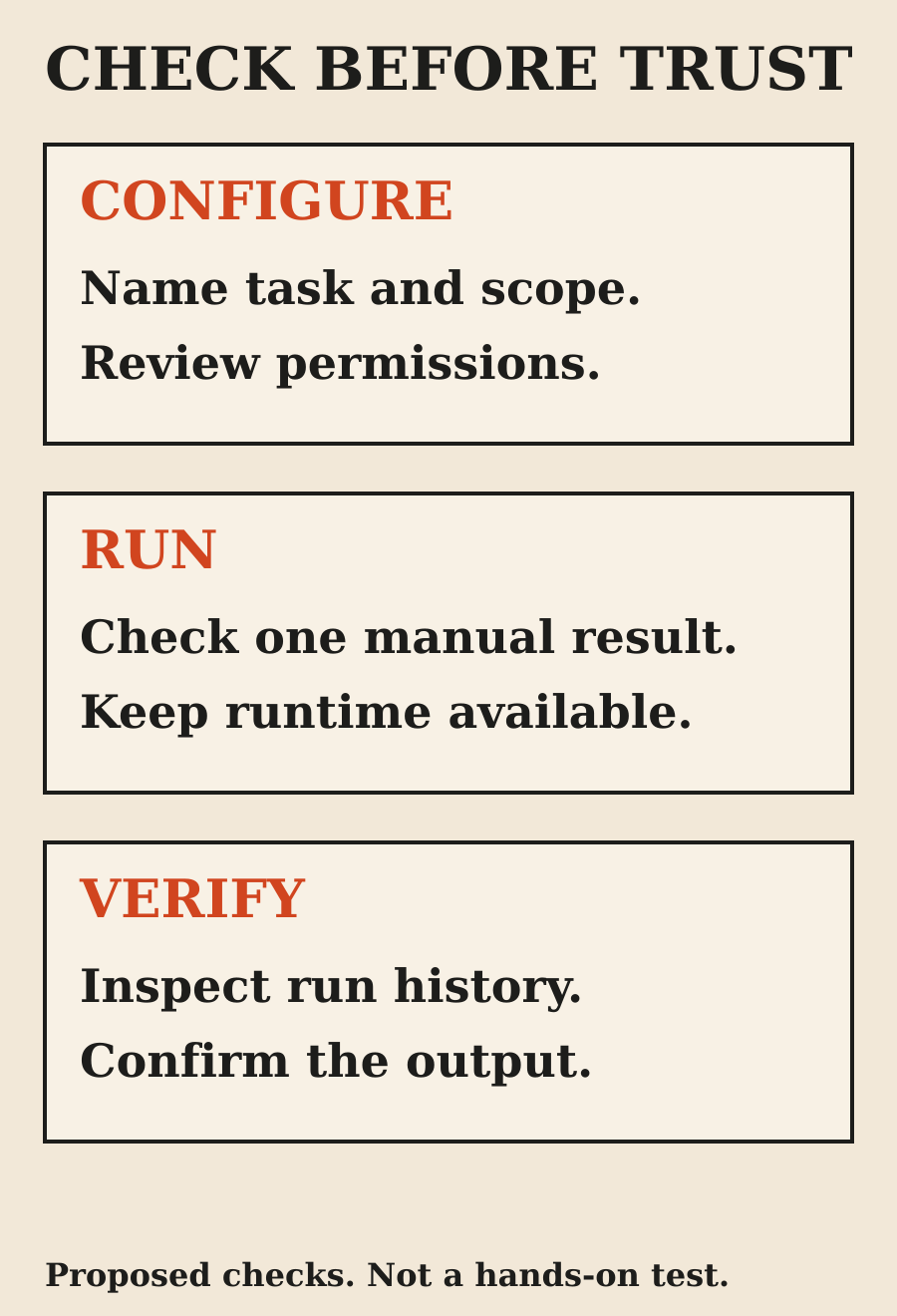
Use a manual run to establish that the task works in the selected environment. Check the actual output, referenced commits and any errors or approval requests. A saved form is configuration, not proof of execution.
VS Code warns that automations can read files, run commands and make changes according to their permissions. Scheduling does not bypass organizational policies or guarantee that future runs will never need approval[1].
If the first run needs input, understand why before making it recurring. Increasing permissions simply to remove a prompt can change the risk of every later run. Prefer a narrower task when that still achieves the purpose.
Use cron when the presets are not enough
The current guide supports manual, hourly, daily, weekly and cron schedules locally. Cloud automations support manual, daily and weekly schedules, not cron[1].
Local cron uses exactly five fields: minute, hour, day of month, month and day of week. Do not add a seconds field or use aliases such as @daily. The form shows an explanation and timezone, and invalid or incomplete expressions keep saving unavailable[1].
A readable schedule is more valuable than a clever one. If the daily or weekly preset expresses the job, use it. Choose cron for a real requirement such as two weekday runs rather than adding complexity to a task that only needs one daily check.
Read the expression and the timezone together
The documented expression `0 9,17 * * MON-FRI` means 09:00 and 17:00 on weekdays. `*/30 * * * *` runs at minutes 00 and 30 of every hour. These are documentation examples, not automations created for this article[1].
New local cron schedules use your local timezone. Editing an existing schedule preserves its saved timezone rather than silently replacing it. Review both the expression and timezone before enabling the automation[1].
One detail is easy to miss: when both day of month and day of week are restricted, either can match. The documented example `0 9 1 * MON` runs on the first day of each month and on Mondays, not only when the first falls on a Monday[1]. Do not infer calendar behavior from how an expression sounds in your head.
What happens when the laptop sleeps?
Local execution depends on the machine and required process being available. VS Code says an interruption can lead to a catch-up run, but you should not rely on every missed occurrence being replayed. One automation runs one session at a time; another occurrence does not create a parallel session for it[1].
That matters for time-sensitive jobs. If you need an update by a deadline, inspect run history and arrange an appropriate fallback. Do not use the existence of a schedule as proof that yesterday's summary was created.
Also consider task duration. A job scheduled more often than it can finish does not gain parallel capacity from the scheduler. Reduce the work, use a longer cadence or choose a different execution design based on what the result actually needs.
Export does not copy execution permission
A local automation can be exported as a .automation.md file. The documented format contains its name, prompt, schedule, format version and portable identifier. It leaves out workspace, provider, model, permissions, enabled state and run history[1].
That is a useful boundary. Sharing the file is sharing a task definition, not giving another machine your complete execution environment. The importer must review and choose the local configuration, and imported automations start with Enabled cleared.
Cron exports use timeZone: local, so the importing machine uses its own local timezone. A cron schedule configured for a different timezone from the current local one cannot be exported. Review the result on the receiving machine instead of assuming it will run at the same moment everywhere[1].
Cloud scheduling needs its own review
Cloud execution solves the awake-laptop dependency, but introduces a different environment. The guide says cloud automation uses its own model and tool configuration, not local approval settings, custom agents or local MCP configuration[1].
Cloud schedules are stored in UTC while daily and weekly times are displayed locally. Review saved times when the local UTC offset changes. Scheduled cloud times use the supported quarter-hour minute choices[1].
The guide also warns that run sessions and logs can be visible to people with repository access, even for an Only me automation. Keep secrets out of prompts, check service usage and read the organization's current rules before enabling repeated unattended work. This article does not establish a cloud entitlement or a fixed cost for your account.
Hiding controls is not stopping work
Turning off the editor's automation settings hides controls; it does not stop existing GitHub schedules or event triggers. Disable or delete cloud automations before turning off those settings if you want them to stop[1].
Disabling an automation prevents future runs but does not stop a run already in progress. Stopping a run requests cancellation; it is not a rollback of actions already completed. Deleting removes the automation and its history[1].
Treat those as different operations. When retiring a task, check whether it is currently running, whether future triggers remain active and whether any changes already need review. A clean sidebar alone does not establish a clean shutdown.
What I would schedule first
Start with a read-only repository summary in a workspace you know. Give it a short scope and expected output, run it manually and compare its references with the actual history. Then choose the slowest useful schedule.
After the first scheduled occurrence, inspect run history and output again. Confirm that the task ran in the expected environment and did not make changes outside its scope. These are proposed acceptance checks, not a claim that I ran this experiment.
The benefit is less repeated setup for routine work. The responsibility is still to distinguish configured, triggered, running and completed. Those are different states, and the useful outcome is the checked result.
FAQ
Does VS Code cron run when my computer is off?
Local cron does not provide an always-on cloud runtime. It needs an awake machine and the required agent process. Cloud automations are a separate option with different access and configuration requirements.
Is cron supported for cloud automations?
Not in the checked documentation. Cron is local; cloud automations support manual, daily and weekly schedules plus supported repository-event triggers.
Will every missed run be replayed?
No such guarantee is documented. An interruption may lead to a catch-up run, but you should not rely on every missed occurrence being replayed.
Does an exported automation include permissions?
No. The recipient chooses workspace, agent, model, permissions and isolation locally. Review those choices before enabling the imported automation.
Does turning off the editor setting stop cloud schedules?
No. Disable or delete the cloud automation itself. Hiding its controls does not stop existing GitHub triggers or cancel a current run.
Did you test a scheduled task for this guide?
No. This is a documentation-based guide, and the suggested first task is an evaluation method rather than a reported test result.
Sources
Elsewhere on this site
GitHub Copilot in Slack and Teams covers another way to start agent work while keeping a reviewed pull request as the handoff. See my software work for examples of the products I build.